SeleniumBase



A Python framework for Web UI testing and site tours with Selenium and pytest.
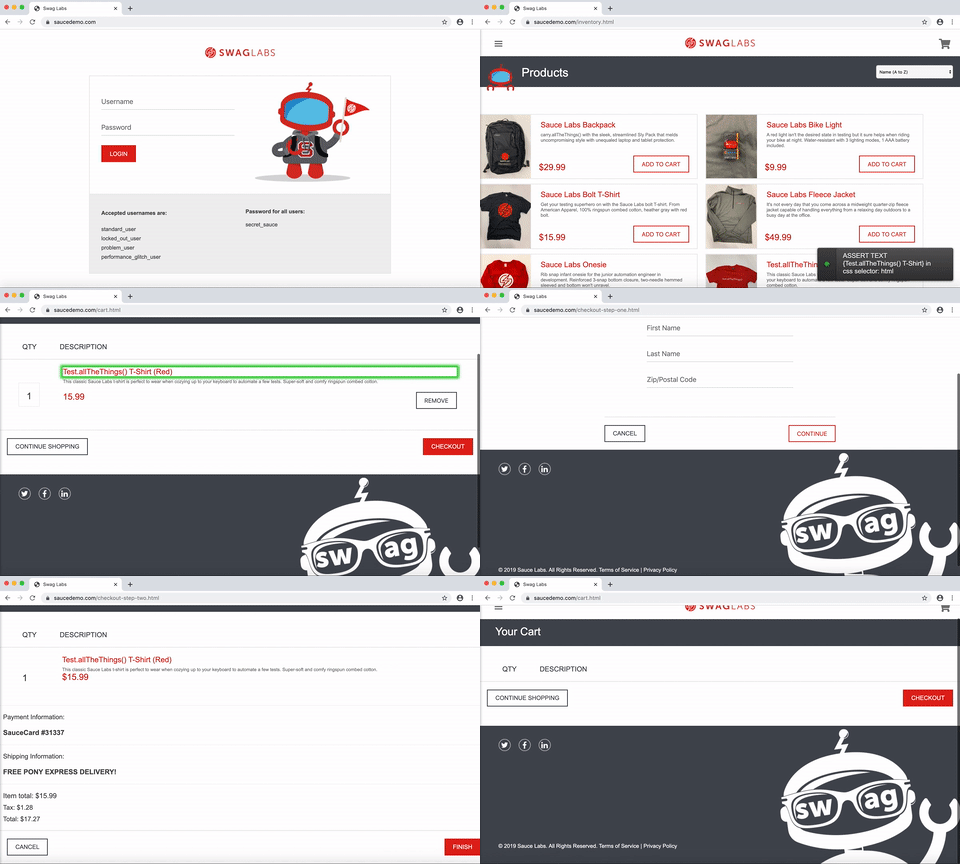
(Above: test_swag_labs.py from examples/ running in Demo Mode.)
pytest test_swag_labs.py --demo
Features
- Simplifies the process of creating of web & mobile tests.
- Includes command-line options for making reports, etc.
- Uses reliable, smart-waiting code to prevent flakiness.
- Multiplies the abilities of pytest and enhances Selenium.
- Includes tools for assisted-QA, visual testing, & web tours.
- Integrates with Selenium Grid, Katalon Recorder, & MySQL.
- To see all features click here. To see all methods, click here.
- To see examples click here. To see all help docs, click here.
Quick Start
- Requires Python and Git

- A Python virtual env is recommended. See shortcut.
- Upgrade pip to prevent warnings:
python -m pip install -U pip
Install seleniumbase
git clone https://github.com/seleniumbase/SeleniumBase.git
cd SeleniumBase/
pip install -r requirements.txt
python setup.py install
If multiple versions of Python are installed, be specific (E.g. use python3 instead of python).
- You can also install
seleniumbasefrom pypi:
pip install seleniumbase
- Add
--upgradeOR-Uto upgrade an installation. - Add
--force-reinstallfor a clean install.
Download a webdriver
SeleniumBase can download a webdriver to the seleniumbase/drivers folder with the install command:
seleniumbase install chromedriver
- You need a different webdriver for each web browser you want to run automation on:
chromedriverfor Chrome,edgedriverfor Edge,geckodriverfor Firefox,operadriverfor Opera, andiedriverfor Internet Explorer. - If you have the latest version of Chrome installed, get the latest chromedriver (otherwise it defaults to chromedriver 2.44 for compatibility reasons):
seleniumbase install chromedriver latest
Run a test on Chrome
cd examples/
pytest my_first_test.py
- Chrome is the default browser if not specified with
--browser=BROWSER. - On Linux
--headlessis the default behavior (running with no GUI). You can also run in headless mode on any OS. If your Linux machine has a GUI and you want to see the web browser as tests run, add--headedor--gui.
Here's an example test, my_first_test.py:
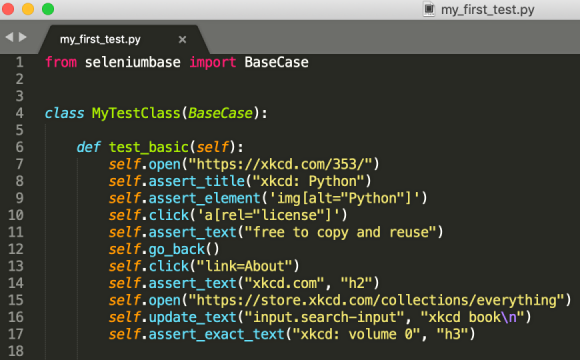
* By default, CSS Selectors are used for finding page elements.
* If you're new to CSS Selectors, games like Flukeout can help you learn.
* Here are some common SeleniumBase methods you might find in tests:
self.open(URL)  # Navigate to the web page
self.click(SELECTOR)  # Click a page element
self.update_text(SELECTOR, TEXT)  # Type text (Add "\n" to text for pressing enter/return.)
self.assert_element(SELECTOR)  # Assert element is visible
self.assert_text(TEXT)  # Assert text is visible (has optional SELECTOR arg)
self.assert_title(PAGE_TITLE)  # Assert page title
self.assert_no_404_errors()  # Assert no 404 errors from files on the page
self.assert_no_js_errors()  # Assert no JavaScript errors on the page (Chrome-ONLY)
self.execute_script(JAVASCRIPT)  # Execute javascript code
self.go_back()  # Navigate to the previous URL
self.get_text(SELECTOR)  # Get text from a selector
self.get_attribute(SELECTOR, ATTRIBUTE)  # Get a specific attribute from a selector
self.is_element_visible(SELECTOR)  # Determine if an element is visible on the page
self.is_text_visible(TEXT)  # Determine if text is visible on the page (optional SELECTOR)
self.hover_and_click(HOVER_SELECTOR, CLICK_SELECTOR)  # Mouseover element & click another
self.select_option_by_text(DROPDOWN_SELECTOR, OPTION_TEXT)  # Select a dropdown option
self.switch_to_frame(FRAME_NAME)  # Switch webdriver control to an iframe on the page
self.switch_to_default_content()  # Switch webdriver control out of the current iframe
self.switch_to_window(WINDOW_NUMBER)  # Switch to a different window/tab
self.save_screenshot(FILE_NAME)  # Save a screenshot of the current page
For the complete list of SeleniumBase methods, see: help_docs/method_summary.md