Detailed instructions
Detailed Instructions:
Here's how to run the example script on various web browsers:
First install a webdriver for each browser you intend to use:
seleniumbase install chromedriver
seleniumbase install geckodriver
seleniumbase install edgedriver
seleniumbase install iedriver
seleniumbase install operadriver
Next, choose between pytest and nosetests test runners. (Mostly interchangeable.)
cd examples/

pytest my_first_test.py --browser=chrome

nosetests my_first_test.py --browser=firefox
(If no browser is specified, Chrome is used by default.) With Pytest, a green dot means a test passed. An "F" means a test failed.
Use Demo Mode to help you see what tests are asserting.
If the example test is moving too fast for your eyes, you can run it in Demo Mode by adding --demo on the command-line, which pauses the browser briefly between actions, highlights page elements being acted on, and lets you know what test assertions are happening in real time:
pytest my_first_test.py --demo
Pytest includes test discovery. If you don't specify a specific file or folder to run from, pytest will search all subdirectories automatically for tests to run based on the following matching criteria:
Python filenames that start with test_ or end with _test.py.
Python methods that start with test_.
The Python class name can be anything since SeleniumBase's BaseCase class inherits from the unittest.TestCase class.
You can see which tests are getting discovered by pytest by using:
pytest --collect-only -q
You can use the following in your scripts to help you debug issues: (If using ipdb, make sure you add "-s" to command-line options unless already in pytest.ini)
import time; time.sleep(5)  # Makes the test wait and do nothing for 5 seconds.
import ipdb; ipdb.set_trace()  # Enter debugging mode. n = next, c = continue, s = step.
import pytest; pytest.set_trace()  # Enter debugging mode. n = next, c = continue, s = step.
To pause an active test that throws an exception or error, add --pdb -s:
pytest my_first_test.py --pdb -s
The code above will leave your browser window open in case there's a failure. (ipdb commands: 'n', 'c', 's' => next, continue, step).
Here are some other useful command-line options that come with Pytest:
-v  # Prints the full test name for each test.
-q  # Prints fewer details in the console output when running tests.
-x  # Stop running the tests after the first failure is reached.
--html=report.html  # Creates a detailed pytest-html report after tests finish.
--collect-only  # Show what tests would get run without actually running them.
-s  # See print statements. (Should be on by default with pytest.ini present.)
-n=NUM  # Multithread the tests using that many threads. (Speed up test runs!)
SeleniumBase provides additional Pytest command-line options for tests:
--browser=BROWSER  # (The web browser to use.)
--cap-file=FILE  # (The web browser's desired capabilities to use.)
--settings-file=FILE  # (Overrides SeleniumBase settings.py values.)
--env=ENV  # (Set a test environment. Use "self.env" to use this in tests.)
--data=DATA  # (Extra data to pass to tests. Use "self.data" in tests.)
--user-data-dir=DIR  # (Set the Chrome user data directory to use.)
--server=SERVER  # (The server / IP address used by the tests.)
--port=PORT  # (The port that's used by the test server.)
--proxy=SERVER:PORT  # (This is the proxy server:port combo used by tests.)
--agent=STRING  # (This designates the web browser's User Agent to use.)
--mobile  # (The option to use the mobile emulator while running tests.)
--metrics=STRING  # ("CSSWidth,Height,PixelRatio" for mobile emulator tests.)
--extension-zip=ZIP  # (Load a Chrome Extension .zip file, comma-separated.)
--extension-dir=DIR  # (Load a Chrome Extension directory, comma-separated.)
--headless  # (The option to run tests headlessly. The default on Linux OS.)
--headed  # (The option to run tests with a GUI on Linux OS.)
--start-page=URL  # (The starting URL for the web browser when tests begin.)
--archive-logs  # (Archive old log files instead of deleting them.)
--time-limit  # (The option to set a time limit per test before failing it.)
--slow  # (The option to slow down the automation.)
--demo  # (The option to visually see test actions as they occur.)
--demo-sleep=SECONDS  # (The option to wait longer after Demo Mode actions.)
--highlights=NUM  # (Number of highlight animations for Demo Mode actions.)
--message-duration=SECONDS  # (The time length for Messenger alerts.)
--check-js  # (The option to check for JavaScript errors after page loads.)
--ad-block  # (The option to block some display ads after page loads.)
--verify-delay=SECONDS  # (The delay before MasterQA verification checks.)
--disable-csp  # (This disables the Content Security Policy of websites.)
--enable-sync  # (The option to enable "Chrome Sync".)
--no-sandbox  # (The option to enable Chrome's "No-Sandbox" feature.)
--disable-gpu  # (The option to enable Chrome's "Disable GPU" feature.)
--incognito  #  (The option to enable Chrome's Incognito mode.)
--reuse-session  # (The option to reuse the browser session between tests.)
--maximize-window  # (The option to start with the web browser maximized.)
--save-screenshot  # (The option to save a screenshot after each test.)
--visual-baseline  # (Set the visual baseline for Visual/Layout tests.)
--timeout-multiplier=MULTIPLIER  # (Multiplies the default timeout values.)
(For more details, see the full list of command-line options here.)
During test failures, logs and screenshots from the most recent test run will get saved to the latest_logs/ folder. Those logs will get moved to archived_logs/ if you add --archive_logs to command-line options, or have ARCHIVE_EXISTING_LOGS set to True in settings.py, otherwise log files with be cleaned up at the start of the next test run. The test_suite.py collection contains tests that fail on purpose so that you can see how logging works.
cd examples/

pytest test_suite.py --browser=chrome

pytest test_suite.py --browser=firefox
An easy way to override seleniumbase/config/settings.py is by using a custom settings file.
Here's the command-line option to add to tests: (See examples/custom_settings.py)
--settings_file=custom_settings.py
(Settings include default timeout values, a two-factor auth key, DB credentials, S3 credentials, and other important settings used by tests.)
To pass additional data from the command-line to tests, add --data="ANY STRING".
Now inside your tests, you can use self.data to access that.
Test Directory Customization:
For running tests outside of the SeleniumBase repo with Pytest, you'll want a copy of pytest.ini on the root folder. For running tests outside of the SeleniumBase repo with Nosetests, you'll want a copy of setup.cfg on the root folder. (Subfolders should include a blank __init__.py file.) These files specify default configuration details for tests. (For nosetest runs, you can also specify a .cfg file by using --config. Example nosetests [MY_TEST].py --config=[MY_CONFIG].cfg)
As a shortcut, you'll be able to run seleniumbase mkdir [DIRECTORY_NAME] to create a new folder that already contains necessary files and some example tests that you can run. Example:
seleniumbase mkdir ui_tests
cd ui_tests/
pytest my_first_test.py
Logging / Results from Failing Tests:
Let's try an example of a test that fails:
""" test_fail.py """
from seleniumbase import BaseCase

class MyTestClass(BaseCase):

    def test_find_army_of_robots_on_xkcd_desert_island(self):
        self.open("https://xkcd.com/731/")
        self.assert_element("div#ARMY_OF_ROBOTS", timeout=1)  # This should fail
You can run it from the examples folder like this:
pytest test_fail.py
You'll notice that a logs folder, "latest_logs", was created to hold information about the failing test, and screenshots. During test runs, past results get moved to the archived_logs folder if you have ARCHIVE_EXISTING_LOGS set to True in settings.py, or if your run tests with --archive-logs. If you choose not to archive existing logs, they will be deleted and replaced by the logs of the latest test run.
Creating Visual Test Suite Reports:
(NOTE: Several command-line args are different for Pytest vs Nosetests)
Pytest Reports:
Using --html=report.html gives you a fancy report of the name specified after your test suite completes.
pytest test_suite.py --html=report.html
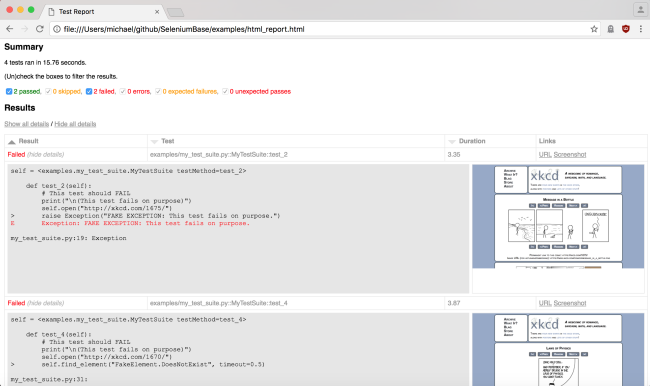
You can also use --junit-xml=report.xml to get an xml report instead. Jenkins can use this file to display better reporting for your tests.
pytest test_suite.py --junit-xml=report.xml
Nosetest Reports:
The --report option gives you a fancy report after your test suite completes.
nosetests test_suite.py --report
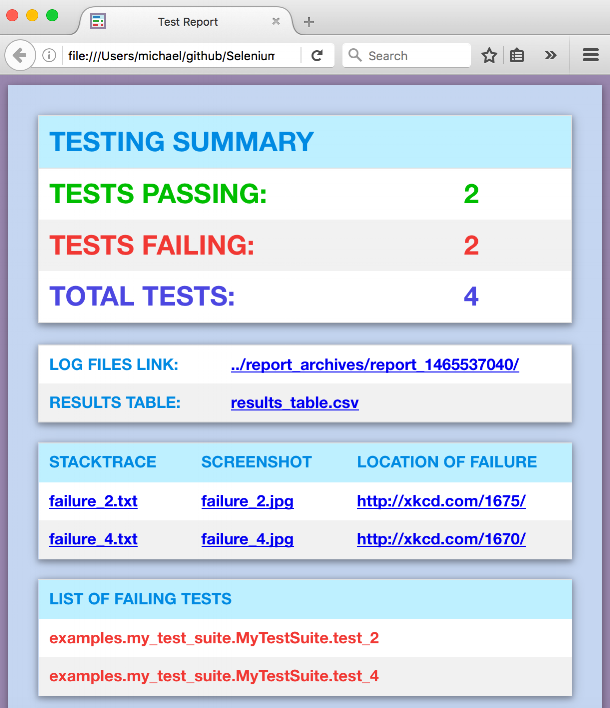
(NOTE: You can add --show-report to immediately display Nosetest reports after the test suite completes. Only use --show-report when running tests locally because it pauses the test run.)
Using a Proxy Server:
If you wish to use a proxy server for your browser tests (Chrome and Firefox only), you can add --proxy=IP_ADDRESS:PORT as an argument on the command-line.
pytest proxy_test.py --proxy=IP_ADDRESS:PORT
If the proxy server that you wish to use requires authentication, you can do the following (Chrome only):
pytest proxy_test.py --proxy=USERNAME:PASSWORD@IP_ADDRESS:PORT
To make things easier, you can add your frequently-used proxies to PROXY_LIST in proxy_list.py, and then use --proxy=KEY_FROM_PROXY_LIST to use the IP_ADDRESS:PORT of that key.
pytest proxy_test.py --proxy=proxy1
Changing the User-Agent:
If you wish to change the User-Agent for your browser tests (Chrome and Firefox only), you can add --agent="USER AGENT STRING" as an argument on the command-line.
pytest user_agent_test.py --agent="Mozilla/5.0 (Nintendo 3DS; U; ; en) Version/1.7412.EU"
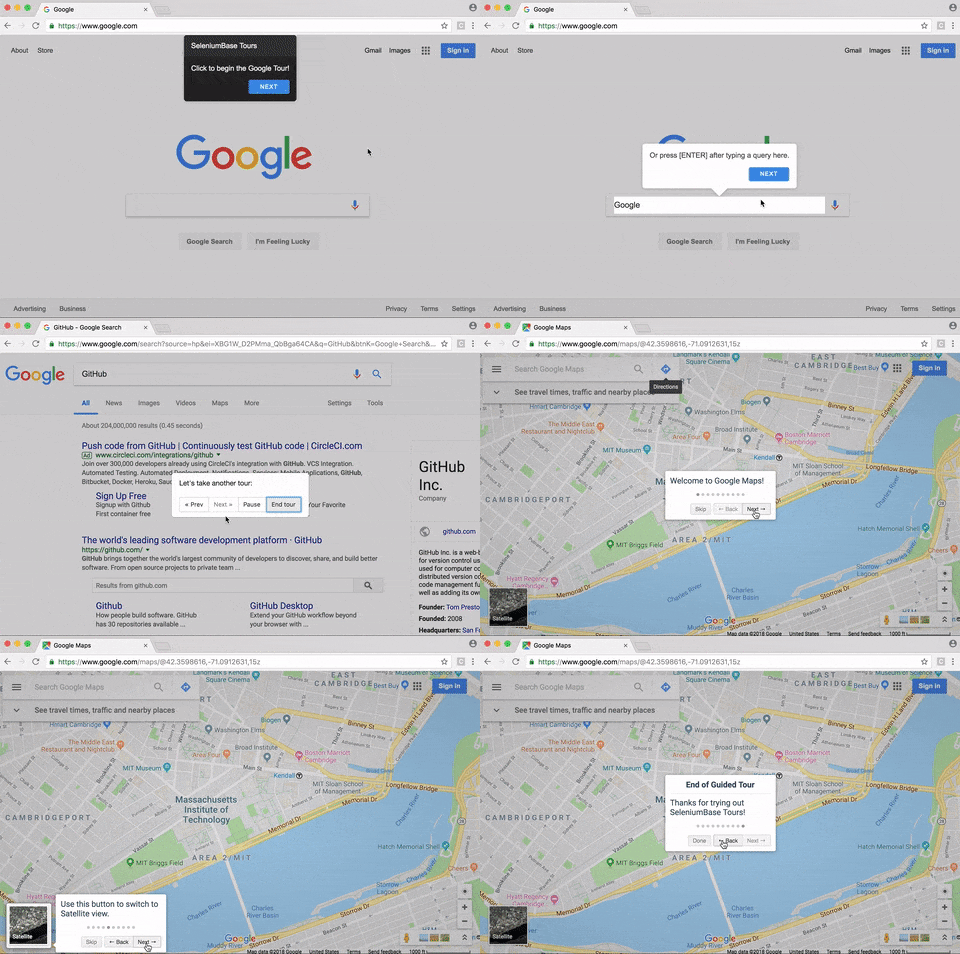
Building Guided Tours for Websites:
Learn about SeleniumBase Interactive Walkthroughs (in the examples/tour_examples folder). It's great for prototyping a website onboarding experience.
Production Environments & Integrations:
Here are some things you can do to setup a production environment for your testing:
-
You can setup a Jenkins build server for running tests at regular intervals. For a real-world Jenkins example of headless browser automation in action, check out the SeleniumBase Jenkins example on Azure or the SeleniumBase Jenkins example on Google Cloud.
-
You can use the Selenium Grid to scale your testing by distributing tests on several machines with parallel execution. To do this, check out the SeleniumBase selenium_grid folder, which should have everything you need, including the Selenium Grid ReadMe, which will help you get started.
-
If you're using the SeleniumBase MySQL feature to save results from tests running on a server machine, you can install MySQL Workbench to help you read & write from your DB more easily.
-
If you use Slack, you can easily have your Jenkins jobs display results there by using the Jenkins Slack Plugin. Another way to send messages from your tests to Slack is by using Slack's Incoming Webhooks API.
-
If you're using AWS, you can setup an Amazon S3 account for saving log files and screenshots from your tests. To activate this feature, modify settings.py with connection details in the S3 section, and add "
--with-s3-logging" on the command-line when running your tests.
Here's an example of running tests with additional features enabled:
pytest [YOUR_TEST_FILE].py --with-db-reporting --with-s3-logging